
How to create warm tone darkroom action on Photoshop (5 Easy Steps)
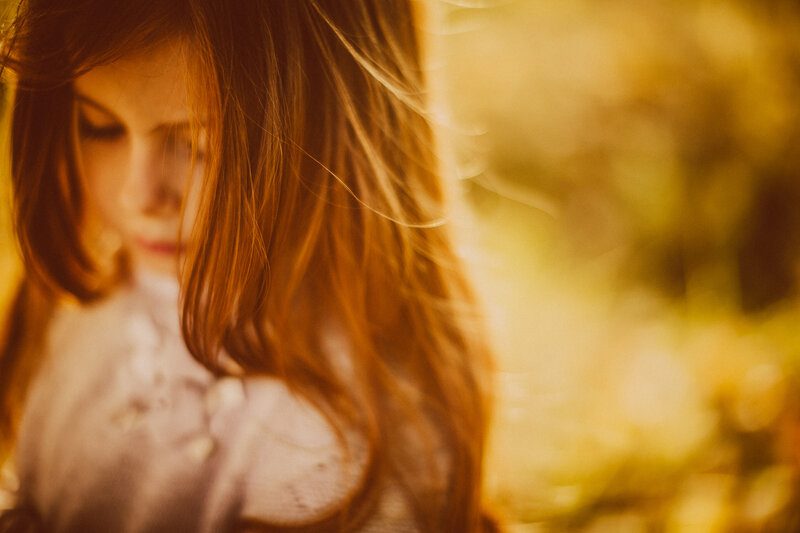
Creating a warm tone darkroom action on Photoshop means you can turn any digital photo into a beautifully retro image. This type of image will be full of character and depth. These effects replicate the warmth and deep contrast in old-school film photography. You can make your photos look like they were shot in a film studio with just a few tweaks. It enhances natural reds, yellows, and browns to create that timeless glow. Photoshop is a powerhouse for creating custom actions and warm tone darkroom effects. Once you set it up, you can apply it to any photo with just one click. Photoshop has every tool you need. It has Color Balance to Curves and Selective Color Adjustment to create a vintage and film-inspired look. Even if you’re new to Photoshop, following along with this tutorial will help you master this effect in no time. In this guide, I’ll walk you through each step of creating a warm tone darkroom action on Photoshop. By the end, you’ll have your own custom action that you can save and use over and over. What Are Warm Tone Darkroom Effects? Warm tone darkroom effects are inspired by traditional film photography techniques. It helps photographers adjust temperature and color during development to create a warm and inviting tone. These effects focus on reds, oranges, and yellows. This creates that familiar “glow” we see on vintage photos. Warm tone effects have become hugely popular in digital photography in recent years. They’re everywhere in social media, fashion shoots, and portrait photography. This is beautiful they create a sense of nostalgia and touch of classic charm. You can recreate this aesthetic in a single click with a warm tone darkroom action on Photoshop. This gives a powerful effect to your photos. The Emotional Impact of Warm Tones in Photography Warm tones aren’t just visually appealing but they’re emotionally impactful too. They evoke feelings of nostalgia, warmth, and coziness. This is why they’re so perfect for portraits, landscapes, and street photography. For example, a warm tone can turn an ordinary portrait into an memorable image that connects with viewers on a deeper level. Nature photos with warm tones can feel more alive. This makes golden-hour shots look even more magical. Key Elements of a Warm Tone Darkroom Action Creating a beautiful warm tone effect involves a few key components: contrast, exposure, color grading, and, of course, warmth. These elements work together to build depth and dimension. For example, adding contrast and adjusting shadows can give the image that film-inspired feel. On the other hand boosting reds and yellows in Color Balance helps to intensify the warmth. Photoshop’s tools make it easy to fine-tune each of these elements until you get the look you’re after. Get personalized Warmtone Darkroom Photoshop Action Setting Up Photoshop for Your Darkroom Action Getting Started with Photoshop If you’re new to Photoshop or just need a quick refresher then here are the essential tools you’ll be using: Layers, Adjustments, and the Actions panel. Layers let you make edits non-destructively. This means you can go back and change things if needed. Adjustments, like Color Balance and Curves lets you tweak color and lighting. This is where most of the magic happens. And the Actions panel is what lets you save this warm tone darkroom effect as a custom action. It is also easy to apply to other photos. If you’re using a recent version of Photoshop such as Photoshop CC then you’ll have everything you need to follow along. But older versions should work fine for these steps too. Because the main tools haven’t changed much. Preparing Your Image for Editing Choosing the right image is key when creating a warm tone effect. Images with natural lighting or a lot of neutral tones (like outdoor landscapes, portraits, or vintage-themed shots) works best. Try to avoid photos that are overly bright or have too many vibrant colors. Because sometimes they can clash with the warm tone effect. Make sure to adjust your photo’s exposure and contrast to get a balanced base before the edits. This helps the warm tones look more natural and prevents them from looking too intense. Related blog posts you may find useful on this are How to Choose Photos for Editing and Tips on Prepping Images for Color Adjustments. Creating Your Warm Tone Darkroom Action Step-by-Step Step 1: Adjust Basic Exposure Settings To get started with your warm tone darkroom action on Photoshop you need to adjust the exposure settings. Open your photo and go to Image > Adjustments > Exposure. You’ll want to increase contrast slightly to create that bold and film-like depth here. Now you need to adjust the Brightness and Exposure. This will help you control the light and dark balance in your image. Adding contrast and balancing exposure sets a strong foundation for the warm tone effect. Check out this guide if you’re looking for more tips on exposure adjustments. Step 2: Adding Warmth with Color Balance Now let’s add warmth to the image. Go to Image > Adjustments > Color Balance and adjust the sliders to bring out reds and yellows. You can also add a bit more red to the highlights and yellows to the midtones. This is where your image will start to take on that warm and nostalgic look. Using Color Balance is one of the easiest ways to control the warmth. You can always go back and tweak it later if it feels too intense. This is the most important step. Because it defines the mood of your warm tone darkroom action. Step 3: Creating Shadows and Highlights for Depth We’ll use Curves to adjust shadows and highlights to add more dimension. Go to Image > Adjustments > Curves, and then make a slight “S” curve by dragging the highlights up and the shadows down. This adds contrast and gives the photo that cinematic look. Using Curves also lets you deepen shadows without affecting the midtones too much. This helps to
10 Best free Photoshop night actions
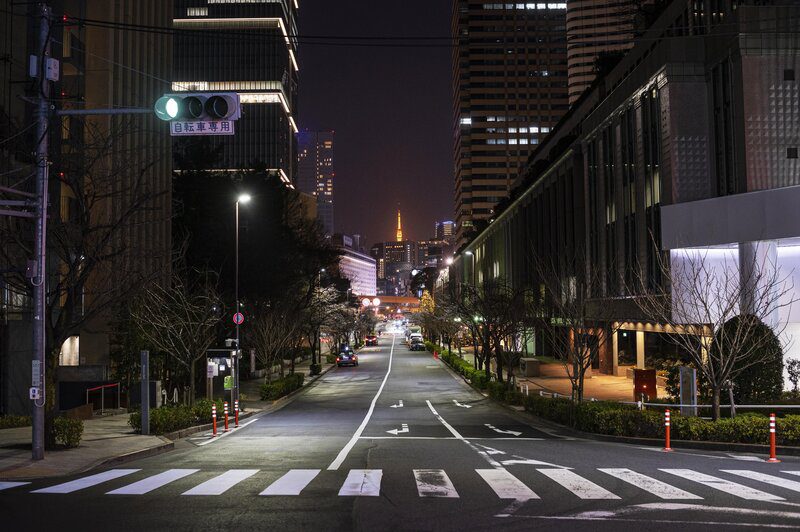
Looking for the best free Photoshop night action to level up your night photography? Then you’re in the right place! These Photoshop actions help you to add vibrant and moody effects to your nighttime shots. You will be able to make your photos from dark and dull to eye-catching with just one click. Night photography has a unique magic. It has beautiful scenarios like city lights, starry skies, and neon signs that look really cool. Capturing those details is tricky. But no worries as Photoshop night actions enhance them within seconds. These one-click edits are instant makeovers for your images. In this post, I’ll walk you through 10 of the best free Photoshop night actions out there. Each offers different styles and effects. There’s something here for every type of night photography. Let’s dive in and find the perfect night action to create those amazing night shots! What Are Photoshop Night Actions and Why Use Them? Photoshop night actions are pre-recorded sequences of edits that you can apply to your low-light or nighttime photos with a single click. These actions can instantly add mood, depth, and the perfect glow to your shots. You will be able to create professional-looking photos without spending hours adjusting individual settings. Types of Photoshop Night Action Effects: The best Photoshop night actions has various effects for nighttime photos. Some popular options include: These night action effects create striking visuals that capture the essence of night photography. Benefits of Using Free Photoshop Night Actions: Free Photoshop night actions will save you a ton of time. They also give a professional touch to your work. It’s great for photographers, influencers, and even basic users. Here are some other benefits of free Photoshop night actions: Using free Photoshop night action downloads can take your night photos from ordinary to extraordinary. Now that we’ve covered what night actions are and why they’re so effective, let’s jump into the main list! In the next section, I’ll guide you through the 10 best free Photoshop night actions that you can download and start using right away. Get ready to transform your night shots with just a click! 10 Best Free Photoshop Night Actions! 1. Nightmare Photoshop Action The Nightmare Photoshop Action gives your photos a dark and moody vibe. It’s perfect for eerie and horror scenes. If you’re looking to create something haunting then this is a great tool. You can use it to add that shadowy touch. Best For: This Photoshop night action is great for outdoor photos taken at dusk or nighttime. Also, good for foggy and wooded landscapes. How to Use: Apply the action and adjust the opacity to intensify or soften the mood. It pairs well with photos that already have shadows. This night action tool makes them appear even more mysterious. Where to Find: You can download the Nightmare Photoshop Action from Brusheezy for free. Example: Imagine a photo of a forest trail at dusk. The Nightmare action will add depth to the shadows and mute the highlights. This will create a spine-chilling effect. 2. Night Glow Photoshop Action This action brings city lights to life by enhancing their glow and adding vibrance. It’s perfect for urban night photography, giving your images a bit of extra magic and atmosphere. Best For: Great for cityscapes, neon signs, or any nighttime urban scenes that could benefit from a pop of color and light. How to Use: Apply the action and use the layer mask to control which areas of your image get the glow effect. Lower the opacity for a subtle touch, or crank it up for a bolder look. Where to Find: Get the Night Glow Photoshop Action for free at Freepik. Example: Think of a bustling street with neon signs. The Night Glow action can highlight those signs and add a bit of dazzle to the streetlights. This makes the scene feel alive. 3. Night to Twilight Action If you’ve ever wished you could capture the magic of twilight after dark then this action is for you. This night Photoshop actions turn dark images into vibrant twilight shots. It also enhances colors and brightens the overall look. Best For: Perfect for landscape shots, evening portraits, and any photo where you want a “golden hour” vibe. How to Use: Apply the action, then use color balance adjustments to tweak hues. It works best on images with a lot of natural elements. Where to Find: You can download the Night to Twilight from DeviantArt. Example: Imagine a lake at night. The Night to Twilight action will add warm purples and pinks to the sky. This will turn the scene into a colorful twilight masterpiece. 4. Cinematic Free Portrait Photoshop Action This action gives your night photos a cinematic look with deep shadows and rich contrast. It also adds a film like drama to portraits and street photography. Best For: Cinematic portrait Photoshop action is best for portraits. This action also works well with photos taken in dimly lit environments and streets. How to Use: Apply the action and adjust contrast to enhance a filmy look. You can also experiment with color grading for an even more cinematic effect. Where to Find: You can download the Cinematic Free Portrait Photoshop Action from Creative Tacos. Example: A photo of someone walking through a foggy alleyway will look cinematic and dramatic. You can use this action’s deep shadows and film-like colors for it. 5. Deep Matte Action This action adds a matte finish with muted colors. It gives photos a vintage or Victorian-inspired look. It’s a unique choice for night photos that need a mystery or an old-time feel. Best For: Works well on landscapes and night portraits, especially those with strong shadows. How to Use: Apply the action, then adjust the contrast and brightness to achieve the matte effect. The action is particularly effective with photos that have a lot of depth and shadow. Where to Find: The Deep Matte Action is available for free on Behance. Example: A
9 Best Photo Retouching Actions for Professional Results
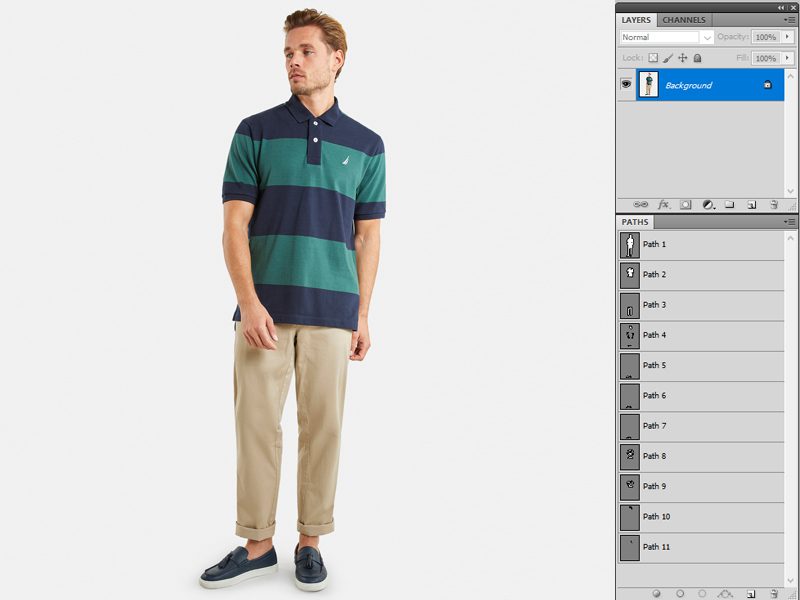
Looking for the best photo retouching actions for professional-quality results? We will introduce you to the best one to take your photo editing to the next level without spending hours tweaking every detail. If you’re a photographer, designer, or just someone who loves enhancing images then these photo retouching actions are the ultimate time-saver. You can streamline your workflow with these preset editing tools. You will also be able to achieve consistent, high-quality results, and make your photos look like they were touched up by a pro. Let’s dive into the best photo retouching actions that will transform your images with ease. What Are Photo Retouching Actions? Photo retouching actions are pre-recorded editing steps that can be applied to your photos with just one click. Actions allow you to automate the process and achieve consistent results every time instead of going through multiple manual adjustments. In Photoshop these actions can be customized to apply everything from skin smoothing and color correction to sharpening and contrast adjustments. They take the guesswork out of editing and let you focus on the creative side of things. If you’re using Photoshop or Lightroom then you should definitely use actions to fasten your workflow. Photo retouching actions help both seasoned professionals to complete beginners. They help to speed up your editing process while still getting high-quality results. The best photo retouching actions are also very useful for photographers, social media managers, designers, and eCommerce sellers. One of the biggest perks of using photo retouching actions is how consistently polished your photos will look. You don’t have to worry about missing details or spending too much time adjusting minor things. With the best retouching actions, you’ll get that professional, magazine-worthy finish every time. Types of Photo Retouching Actions: There are various photo retouching actions out there. Each of them is great for different types of edits. Here are some of the most popular ones: There’s an action out there that can help you no matter what style or type of photo you’re working on. The 9 Best Photo Retouching Actions for Professional Results Now that you know what to look for, let’s dive into the top picks! Below I will introduce you to the 9 best photo retouching actions for professional results. They will take your photos from average to amazing in just a few clicks. You won’t want to miss this! 1. Skin Retouch Photoshop Actions Kit Skin Retouch Photoshop Actions Kit, Actions and Presets Including: adobe & airbrush is ideal for portrait photography, this action set is all about achieving a flawless, natural look. It smooths skin tones, reduces blemishes, and enhances facial details without compromising skin texture. The results are realistic and polished, perfect for high-quality close-ups and headshots. Compatibility: Adobe Photoshop CS6 and later, including CC versions. Best For: Portrait photographers, headshots, beauty retouching. 2. Free Photoshop Color Actions Free Photoshop Color actions pack enhances vibrancy and depth in colors, giving life to photos that need a bit more energy. It’s excellent for brightening up dull images and adding color contrast, making it ideal for everything from product photography to vibrant portraits. Compatibility: Adobe Photoshop CC and CS6, Lightroom (with plugin). Best For: Social media images, product shots, landscapes, and vivid portraits. 3. High End Retouching Photoshop Actions High End Retouching Photoshop Actions are specifically designed for beauty and fashion photography, this suite sharpens details, balances highlights, and refines skin texture, giving images a polished, high-end look perfect for commercial use. Compatibility: Photoshop CS6 and up, Photoshop CC versions. Best For: Fashion, beauty, and editorial photographers seeking a magazine-quality finish. 4. Shadow & Light Photoshop Action Shadow & Light Photoshop Action can improve light and shadow balance in images, adding a soft, natural depth that’s ideal for outdoor photography and portraits. It helps create a lifelike, professional finish that’s subtle but powerful. Compatibility: Photoshop CC and CS6, works with RAW and JPEG files. Best For: Outdoor portraits, lifestyle photography, natural lighting effects. 5. Free Vintage Matte Photoshop Actions Free Vintage Matte Photoshop Actions are perfect for creating timeless, nostalgic images, these matte presets add soft effects with a vintage look, making them a go-to for lifestyle and editorial shots with a classic feel. Compatibility: Photoshop CC, Photoshop Elements, and Lightroom. Best For: Lifestyle, editorial, and travel photographers who want a timeless look. 6. HDR Action Photoshop Collection HDR Action Photoshop Collection adds a high dynamic range (HDR) effect, boosting contrast and clarity for dramatic results. This action is fantastic for bringing out details in landscape photography and enhancing textures in urban or architectural images. Compatibility: Adobe Photoshop CC and CS6, compatible with both RAW and JPEG files. Best For: Landscape photographers, dramatic and high-contrast images. 7. Teeth Whitening Photo Retouching Actions Teeth whitening Photoshop action are designed for quick portrait touch-ups, this action brightens teeth and enhances eye details, giving close-ups a polished and professional appearance. Compatibility: Adobe Photoshop CC, Lightroom (with plugin). Best For: Portrait photographers, family photos, headshots, and school photos. 8. Glamourana Makeup & Hair Essentials Photoshop Action Collection Glamourana Makeup & Hair Essentials Photoshop Action Collection enhances hair texture and detail, adding definition and a natural sheen that’s perfect for beauty and fashion shots. It gives a subtle but impactful lift to hair, making it look healthy and full. Compatibility: Photoshop CC, compatible with most RAW and JPEG files. Best For: Fashion photographers, beauty retouching, and any shots focusing on hair detail. 9. Pro Sharpen Photoshop Action Sharpen Photoshop Action is a must for product photography, this action pack sharpens fine details and improves overall clarity, helping products and close-up details stand out with a clean, high-definition look. Compatibility: Photoshop CC and CS6, works with RAW and JPEG. Best For: Product photography, close-up detail shots, and any work requiring crisp definition. Key Features to Look for in the Best Photo Retouching Actions Quality of Output: One of the first things you want to check in the best photo retouching actions is the quality of output. You don’t
How to Install and Use Photo Retouching Actions Like a Pro (3 Easy Steps)
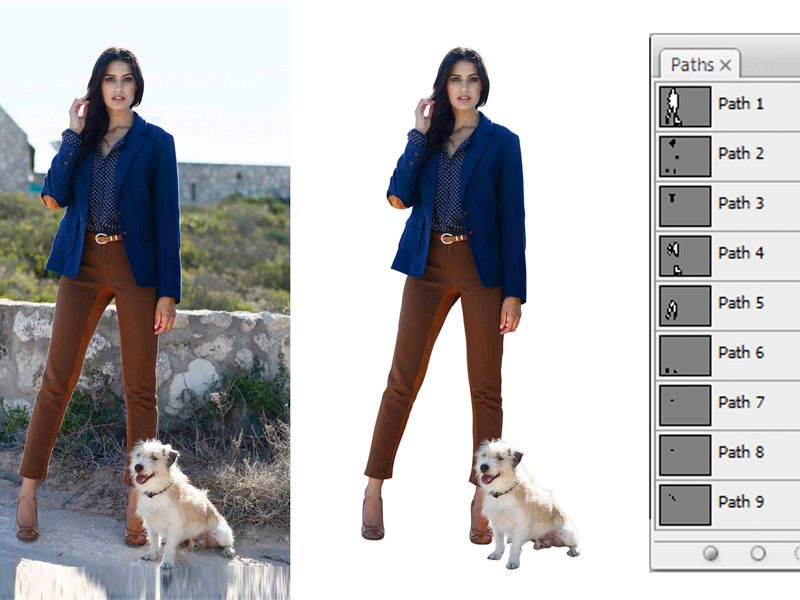
Want to know how to use photo retouching actions to take your editing skills to the next level? Then mastering this powerful tool can save you hours of work. If you’re a photographer or designer, then these are the best thing for your entire editing process. You can automate repetitive tasks, apply consistent edits across multiple images, and achieve professional results with just a few clicks with photo retouching actions. In this guide, I’ll walk you through how to install, customize, and use photo retouching actions like a pro. This way you can speed up your workflow and focus more on your creativity. Ready to dive in? Let’s get started! What Are Photo Retouching Actions? Photo retouching actions are recorded sequences of steps that you can apply to an image with a single click. They automate repetitive tasks like color correction, skin smoothing, or sharpening, saving you tons of time. Photoshop actions work by recording every adjustment you make to an image and playing them back in the exact same order on other images. This means you don’t have to manually repeat each step every time you want to apply the same edits. Learning to use photo retouching actions is let you do more at less time. They are the best thing you can have if you are working with batch editing or want consistent results across multiple images. It’s a secret shortcut for every retouching process! The Benefits of Using Actions These Photoshop actions can save you a huge amount of time. You can automate the process instead of repeating the same steps on dozens of images. This means more time spent on the creative side of things and less time on tedious edits. Another major benefit is consistency. Photoshop retouching actions help ensure that all your edits look the same across every image. You’ll get consistent results without any manual guesswork from adjusting skin tones to applying a particular color grade. Example of Use Let me give you a practical example. Imagine you’re a portrait photographer with 100 images to retouch after a photo shoot. Normally, you’d have to go through each image and repeat the same process. This includes smoothing skin, brightening eyes, and adjusting colors. You can set all these steps to run automatically with Photoshop retouching actions. You just press “play,” and Photoshop does the work for you in a fraction of the time. How cool is that? 🤩 Types of Retouching Actions Available for Photoshop 1. Pre-installed Actions Believe it or not, Photoshop actually comes with a handful of pre-installed actions that you can use right away. These are basic actions like sharpening, color correction, and image resizing. These are great for getting started. But the real magic happens when you use custom and downloadable actions for specific types of retouching. This can be portrait editing or fashion photography. Examples: Sharpening, color correction, and image resizing actions. 2. Custom Retouching Actions The beauty of Photoshop is that you can create or download custom actions that are designed for more specific needs. For example, there are skin retouching actions that automatically smooth out blemishes, actions for dodging and burning, and even color grading actions to give your photos a professional look with minimal effort. Where to Find Pre-made ActionsSo, where do you find these magical tools? There are plenty of resources online where you can download Photoshop actions—some are free, and some are premium. Websites like Envato Elements and Creative Market offer high-quality actions that can take your retouching game to the next level. And don’t worry, there are also plenty of free options if you’re just getting started or don’t want to invest in paid actions right away. How to Install Photo Retouching Actions in Photoshop? Installing Photoshop retouching actions is really easy. Even if you’re a total beginner! I’ll walk you through the entire process step by step. So you can get started using actions in no time. Let’s go! Step-by-Step Guide To Install Photo Retouching Actions Step 1: Download the action file (.ATN format). When you download a Photoshop action it will typically come as a file with the .ATN extension. Make sure to save this file in a location where you can easily access it later. Step 2: Open Photoshop and access the Actions panel. Now, open Photoshop and go to the “Window” menu at the top of your screen. Scroll down and click on “Actions” to open the Actions panel. This is where all your installed actions will live. Open the photo you want to edit and select the loaded action in the Actions panel. Then click the Play button at the bottom of the panel. The action will automatically apply the steps. Note: If you’re new to Photoshop then the Actions panel might seem hidden at first. Don’t worry. Just follow the steps above and you’ll find it. Step 3: Load the action into Photoshop. Click on the menu icon in the upper-right corner of the panel once your Actions panel is open. Then select “Load Actions.” Now navigate to the folder where you saved the .ATN file and double-click to load it. That’s it! Your action is now ready to use. Expert Tip: Organizing your actions into folders is a great way to keep things neat. This makes sure you can easily find the actions you need. Trust me, once you start using multiple actions things can get messy if you don’t stay organized. Common Installation Issues Sometimes, things don’t go as smoothly as we’d like. If your action isn’t working then it could be due to compatibility issues with your version of Photoshop. Make sure you’re using an action that’s compatible with your Photoshop version. Also check that the action was downloaded correctly. This is just the beginning! In the next section, I’ll show you how to actually use Photoshop retouching actions to speed up your workflow, achieve professional-quality edits, and make your editing life a whole lot easier. Stay tuned! How to Use Photo Retouching